Smart Locks in Apple Home
Check how Matter, Thread, a home hub, and model-specific features affect smart-lock control in Apple Home.
Jump to a section
Apple Home compatibility depends on the exact lock, its connection path, and the Apple devices in the home. A HomeKit or Matter label does not by itself establish Home Key, remote access, automations, notifications, or support for every lock action. Check those features for the model and region you plan to use.
Separate local control from remote access
Apple’s support guidance describes more than one setup context. Its current iPhone Home guide says Matter accessories require a home hub. Apple’s UK Matter pairing article also documents local Matter setup and control without a home hub on supported iOS versions and devices, including local Thread control for specified newer iPhones. Apple recommends a home hub for the best experience. These statements describe different device, software, network, regional, and control conditions; check the support guidance for your region rather than reducing them to a universal “hub always required” or “hub never required” rule.
Local control means an eligible phone can communicate with an accessory while on the relevant home network or nearby supported path. Remote control and automations require additional home infrastructure. For Thread accessories, Apple says a Thread-enabled home hub or supported third-party Thread border router is needed for features such as remote access and automations. Confirm that Apple’s current supported-device list includes your iPhone, operating-system version, hub, and lock.
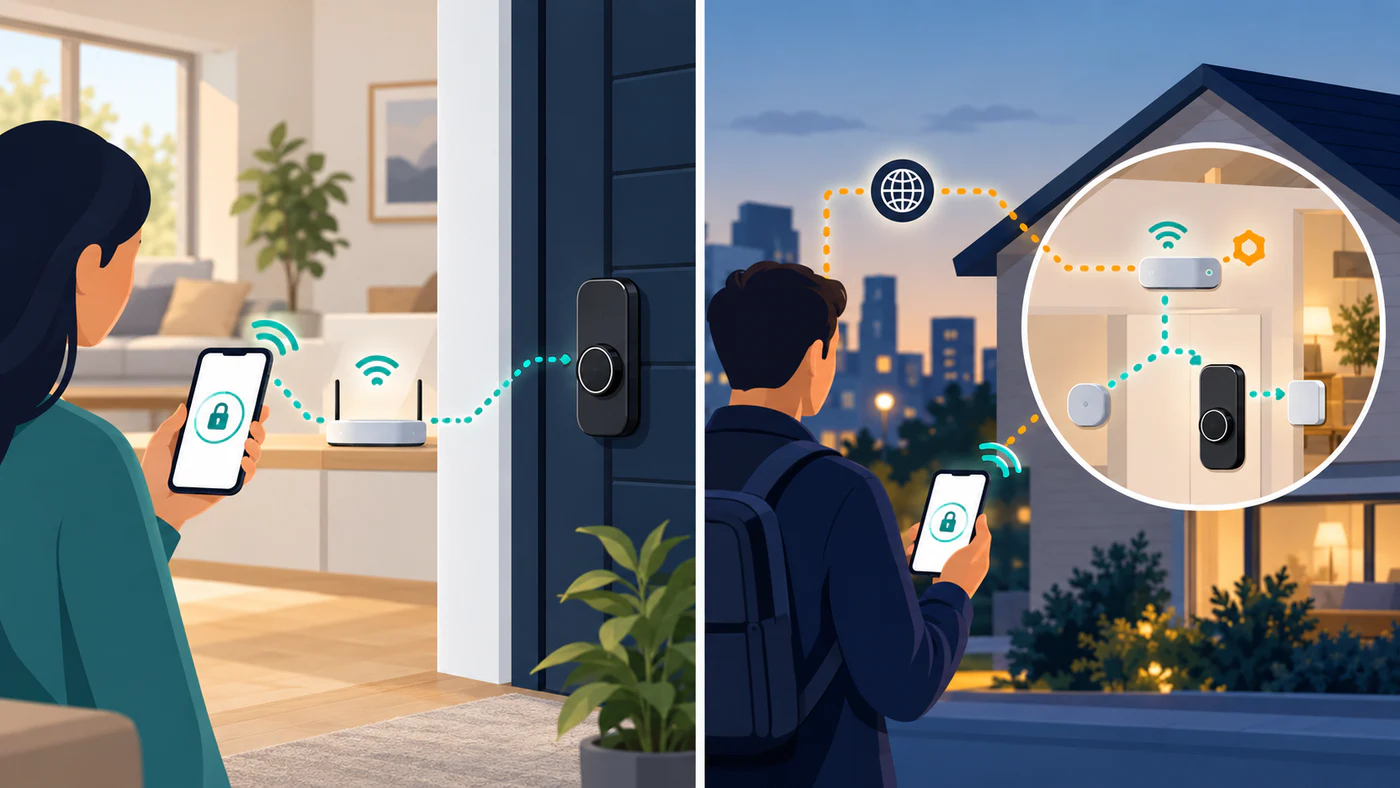
Local eligibility and remote operation can have different home hub and Thread requirements; check current guidance for your device and region.
Matter does not add every Apple feature
Matter support can provide a common way for Apple Home to communicate with a compatible lock. It does not make every manufacturer’s feature part of Matter. Door status, activity history, guest access, keypad management, firmware updates, and battery reporting may remain in the manufacturer’s app or depend on a particular integration.
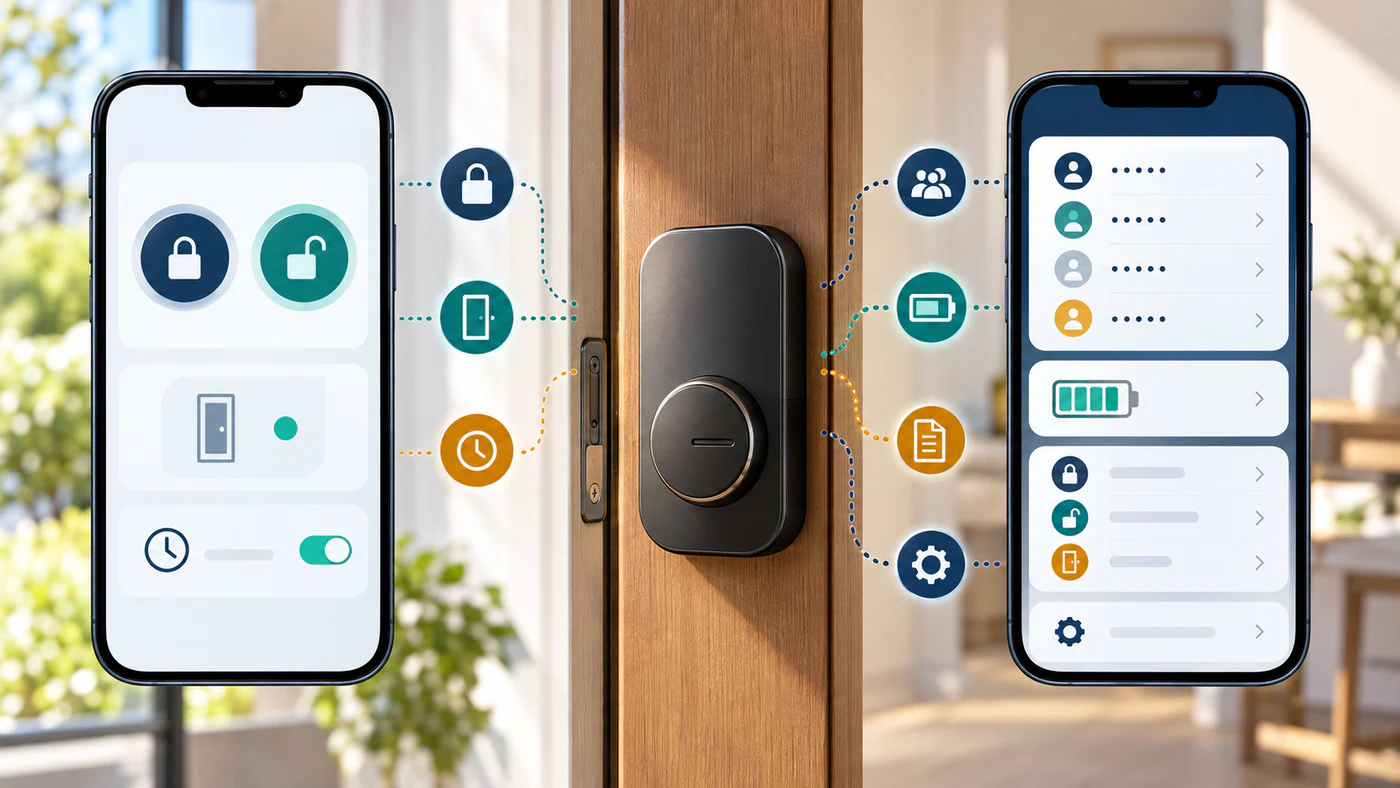
Treat each symbol as a feature to verify; its app location depends on the lock, integration, and software.
Home Key is also model-specific. For example, Aqara lists Home Key support for its U100, which uses a Zigbee connection through an Aqara hub for its Matter path. That product page describes a specific lock and hub arrangement. It is not evidence that any Matter lock can use Home Key. The same page marks some door-status and logging capabilities as planned, so verify their present availability before relying on them.
Aliro is another credential/access standard, separate from Matter control and from Apple Home Key. Its NFC, Bluetooth LE, and Bluetooth LE plus UWB methods do not establish that a specific lock supports Home Key or another wallet. Use the Aliro and Matter guide to check the exact lock, wallet, phone, and market.
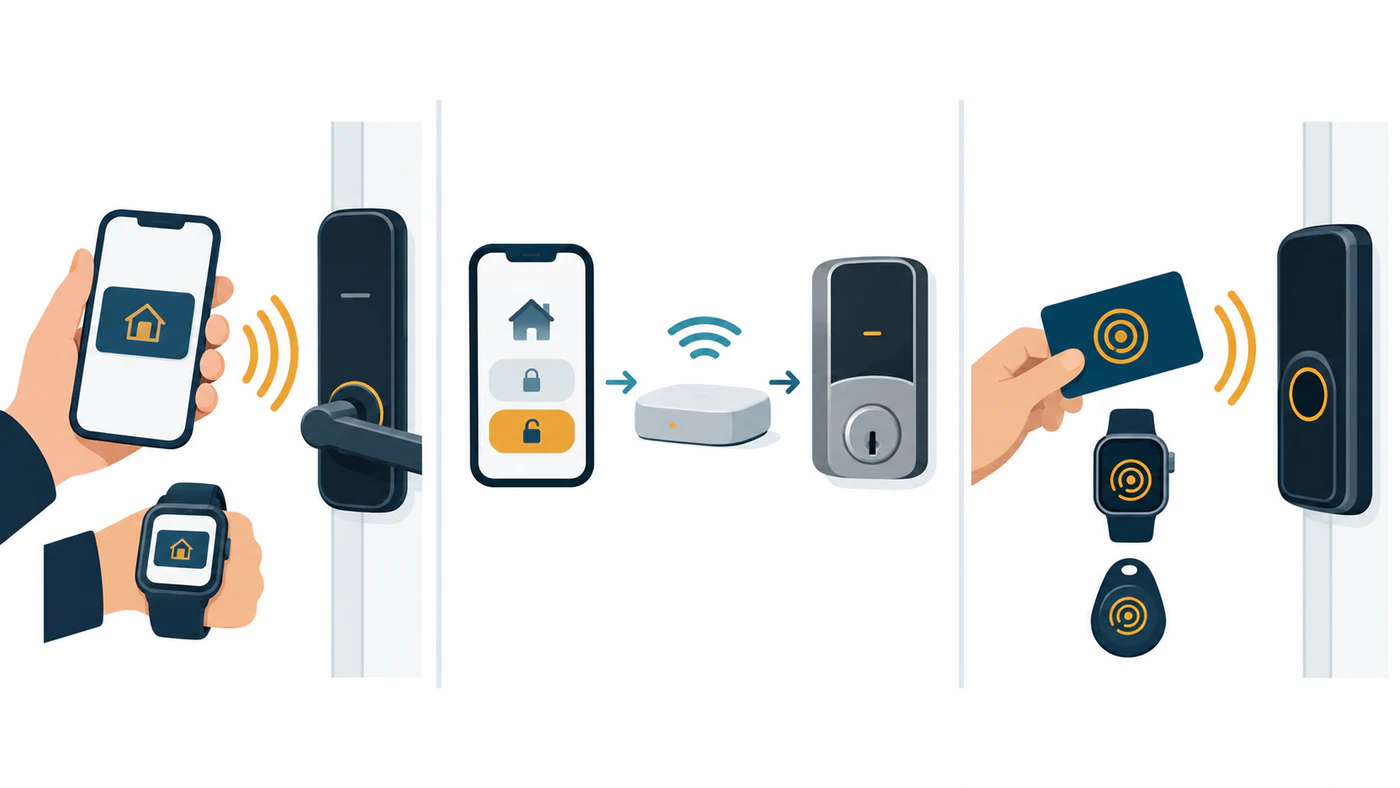
Home Key, Matter lock commands, and Aliro credentials are separate paths; one does not establish support for another.
For the U100’s published door-preparation checks, consult Aqara’s U100 product information and match those measurements to your exact door.
Verify the model before purchase
Check the manufacturer’s product page and Apple Home setup instructions for:
- The exact lock model and regional variant.
- Whether it connects directly, through Matter, or through a manufacturer bridge.
- The Apple hub or Thread border router required for the desired local, remote, and automation functions.
- Whether Home Key is supported, and what Apple device or software is required to provision it.
- Which lock actions, status details, PIN features, notifications, and firmware controls appear in Apple Home versus the manufacturer’s app.
If a feature is essential, look for an explicit statement for the exact model and test it after setup. “Works with Apple Home” is too broad to answer whether a particular Home Key, remote-unlock, or notification workflow is available.
A safe compatibility workflow
First confirm the lock physically fits the door using its model-specific installation guide. Then map its radio, Matter or bridge path, required hub, and Apple Home controls. Keep the manufacturer’s app installed until commissioning and firmware updates are complete. After pairing, test lock and unlock while nearby, then test remote access and automations separately. Avoid enabling remote unlock until you understand the app’s authentication and household-access settings.
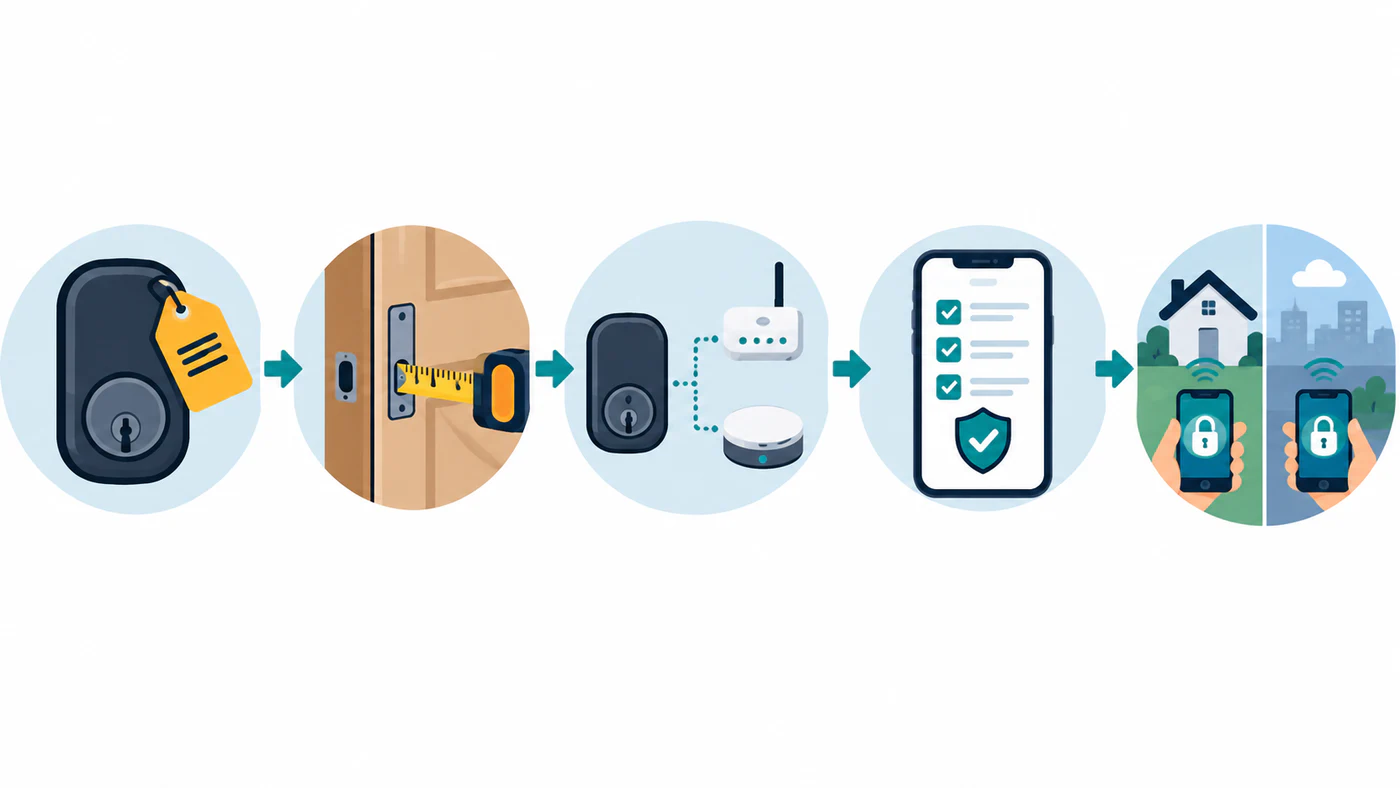
Check mechanical fit before purchase, then test nearby control, remote access, and automations as separate functions.
The ULTRALOQ Bolt NFC guide shows why Home Key, Bluetooth, Xthings Home Wi-Fi, and Apple Home remote access must be checked as separate paths for that model. The Aqara U200/U400 guide covers those models’ Matter, Thread, Home Key, and UWB requirements. Use the ecosystem feature matrix to record each capability separately. The hub and commissioning guide explains the controller and Thread requirements that can sit behind an Apple Home compatibility label.
Reference material