Wi-Fi, Bluetooth, Thread, Hub, Firmware, and Feature Failures
Trace smart-lock setup and control failures through the phone, network, controller, firmware, and supported-feature layers.
Jump to a section
A lock can fit and operate mechanically while failing during app discovery, Matter commissioning, network communication, or feature control. Diagnose the stage that failed before resetting the device or changing the home network.
Record the setup path
Write down the exact lock model and regional variant, the phone operating system, the lock and app firmware, the target ecosystem, and whether the failure occurs during discovery, first pairing, local control, remote access, or one particular feature. Use the manufacturer’s current support page to confirm that the exact model and feature are supported on that platform.
Separate setup from normal operation
For Home Assistant’s Matter path, Bluetooth is used to commission or pair the device. After commissioning, the device communicates over its supported Wi-Fi or Thread network. A phone that cannot find a lock during setup points to a different stage from a device that was added successfully but later becomes unavailable.
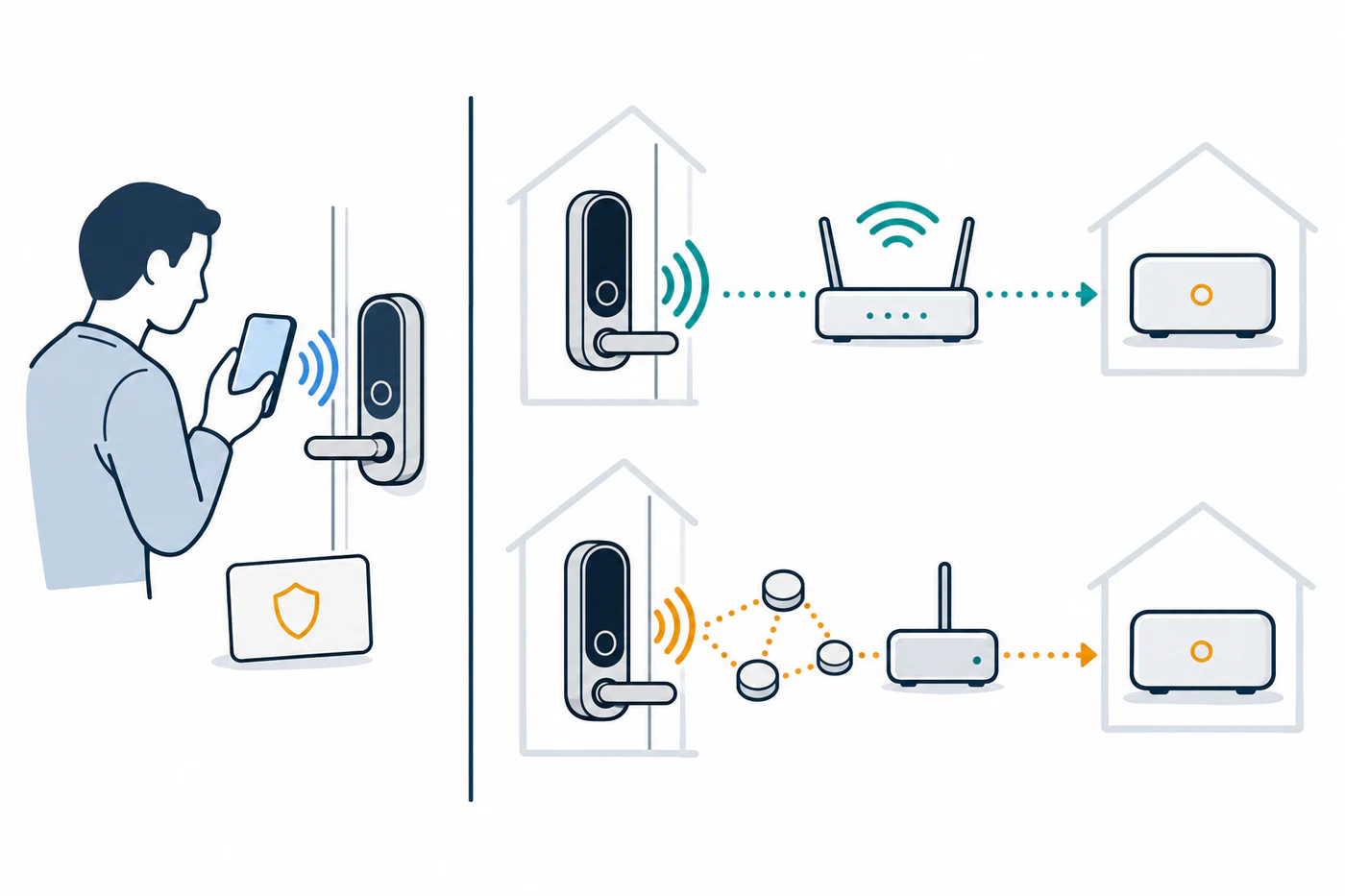
For Home Assistant Matter and Thread setups
Start with the point where the failure occurs:
| Symptom | Check |
|---|---|
| The lock never appears during commissioning | Keep the phone near the lock with Bluetooth on, and use the current manufacturer and Home Assistant setup instructions. This is the Bluetooth-assisted setup stage. |
| The device paired but Home Assistant later shows it unavailable | Confirm that the lock, its Thread border router or Wi-Fi access point, and the Home Assistant host can communicate on the expected local network. For Thread, verify the exact lock and border-router support. |
| Discovery fails only across a VM, container, VLAN, or filtered Wi-Fi network | Ask the network administrator to check local IPv6 and multicast/mDNS reachability across those layers. Home Assistant’s Matter guidance says local IPv6 multicast must reach Home Assistant and IPv6 must be enabled there; an IPv6 internet connection and DHCPv6 service are not required. Thread routing and border-router availability are separate checks. |
| The lock is reachable but one control is missing | Check feature support for the exact lock, firmware, and Home Assistant integration. A reachable Matter device may still expose a different feature set. |
Home Assistant’s Matter and Thread guidance describes several network layers, including the host, router, virtual machine or container, and multicast handling. Collect the symptom, topology, and device diagnostics before changing network settings; changes belong to the person responsible for that home network.
Home Assistant’s current Matter integration documentation describes a network map that can help identify weak or offline Matter devices. It is available to an administrator with Matter Server app version 9.2.0 or later, or a self-hosted Matter Server version 1.4.0 or later. Check the deployment type and version before treating an absent map as evidence that a lock or feature is unsupported.
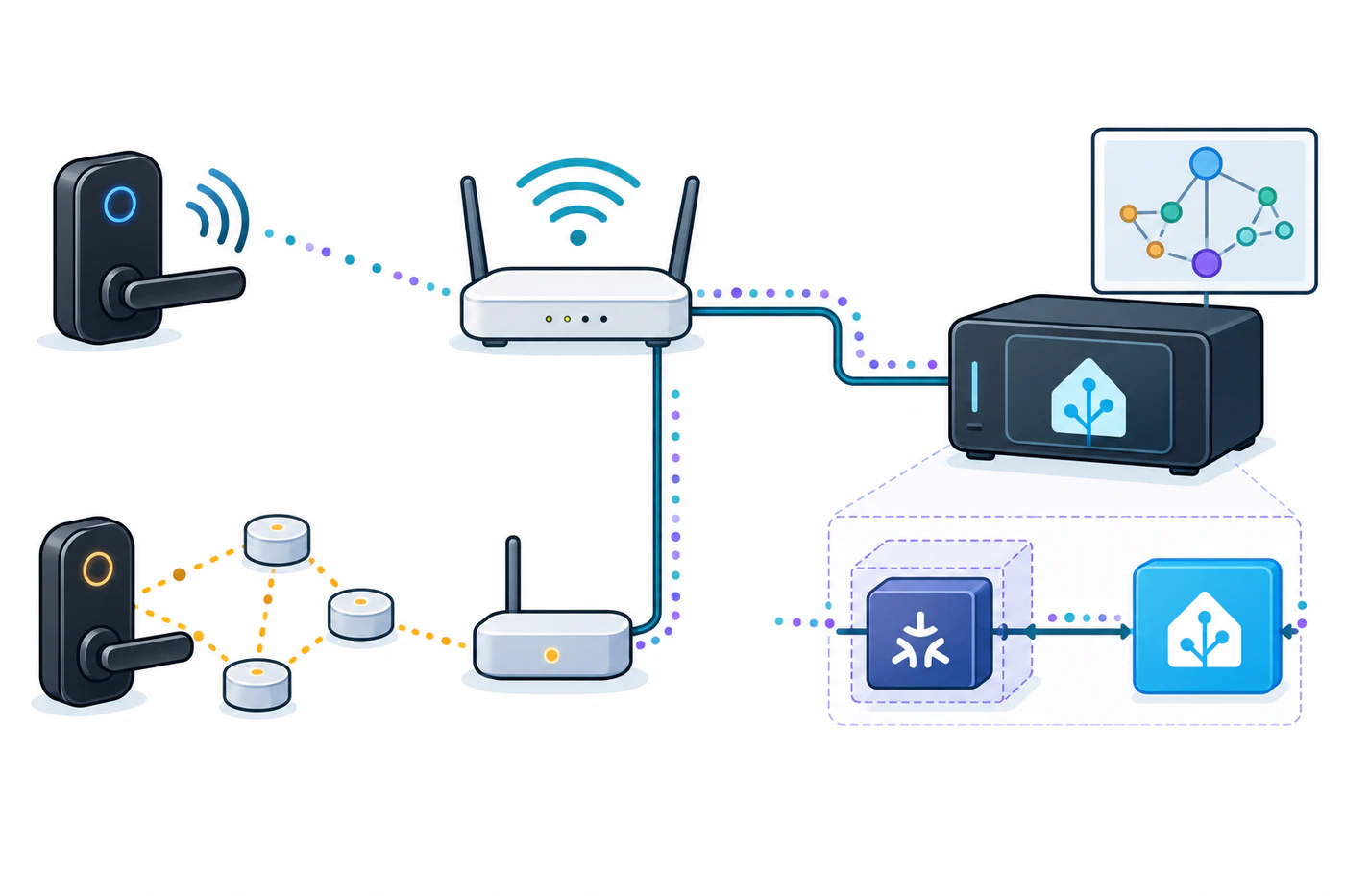
This diagnostic is separate from Home Assistant’s June 2026 Matter Server update announcement, which describes Matter Server 9.0, Matter 1.5.1, and Thread 1.4 platform support. Those platform versions do not establish the network map’s minimum versions, prove that a particular lock implements the same versions or exposes every feature, or show that its bolt moved. Check the lock at the door separately.
For Wi-Fi, check the exact product’s band and commissioning requirements. Google Home’s Matter guidance lists a Google Account, home Wi-Fi, IPv6 enabled on the home router, and a Matter-enabled Google hub for the Google Home setup path; Thread products also need a Thread border router. Those are Google Home requirements, not a universal set for every ecosystem.
The KAADAS P30 Pro Max manual for the Singapore edition, for example, specifies 2.4 GHz Wi-Fi rather than 5 GHz and recommends keeping the router within 10 m. These are that model and market’s instructions, not general smart-lock limits; check the manual for the exact regional variant.
Check ecosystem and feature boundaries
Matter support does not mean every app exposes every feature. Lock/unlock, keypad codes, door sensing, voice control, remote access, and automations may have different prerequisites. Compare the lock’s manufacturer app with the target platform and verify the feature for the exact model and firmware.
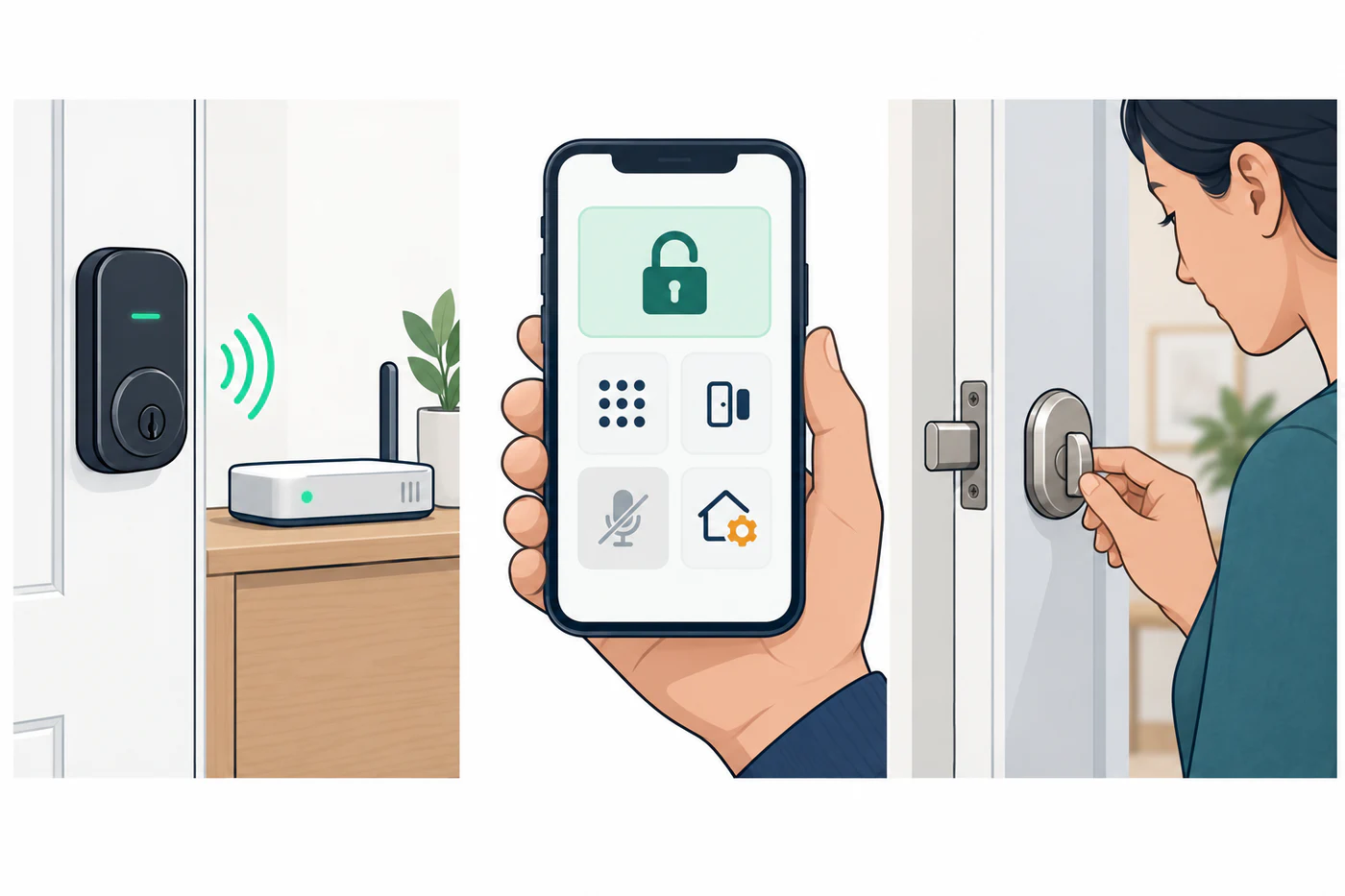
Apple’s current documentation has a version-specific difference: its iOS 26 Home guide says Matter accessories require a home hub, while its accessory troubleshooting page says an iPhone using iOS 18 or later can add and control Matter accessories without one. Check the current Apple instructions for the installed operating system and accessory. Do not infer that local control, remote control, and automation have identical requirements.
Some manufacturers also make pairing behavior model-specific. For example, the Aqara U300 manual says the printed Matter code becomes invalid after the first ecosystem is bound; a second ecosystem uses a code copied from the already bound app. See Aqara U300 Matter binding. This is a U300 instruction, not a generic Matter recovery rule.
Update carefully
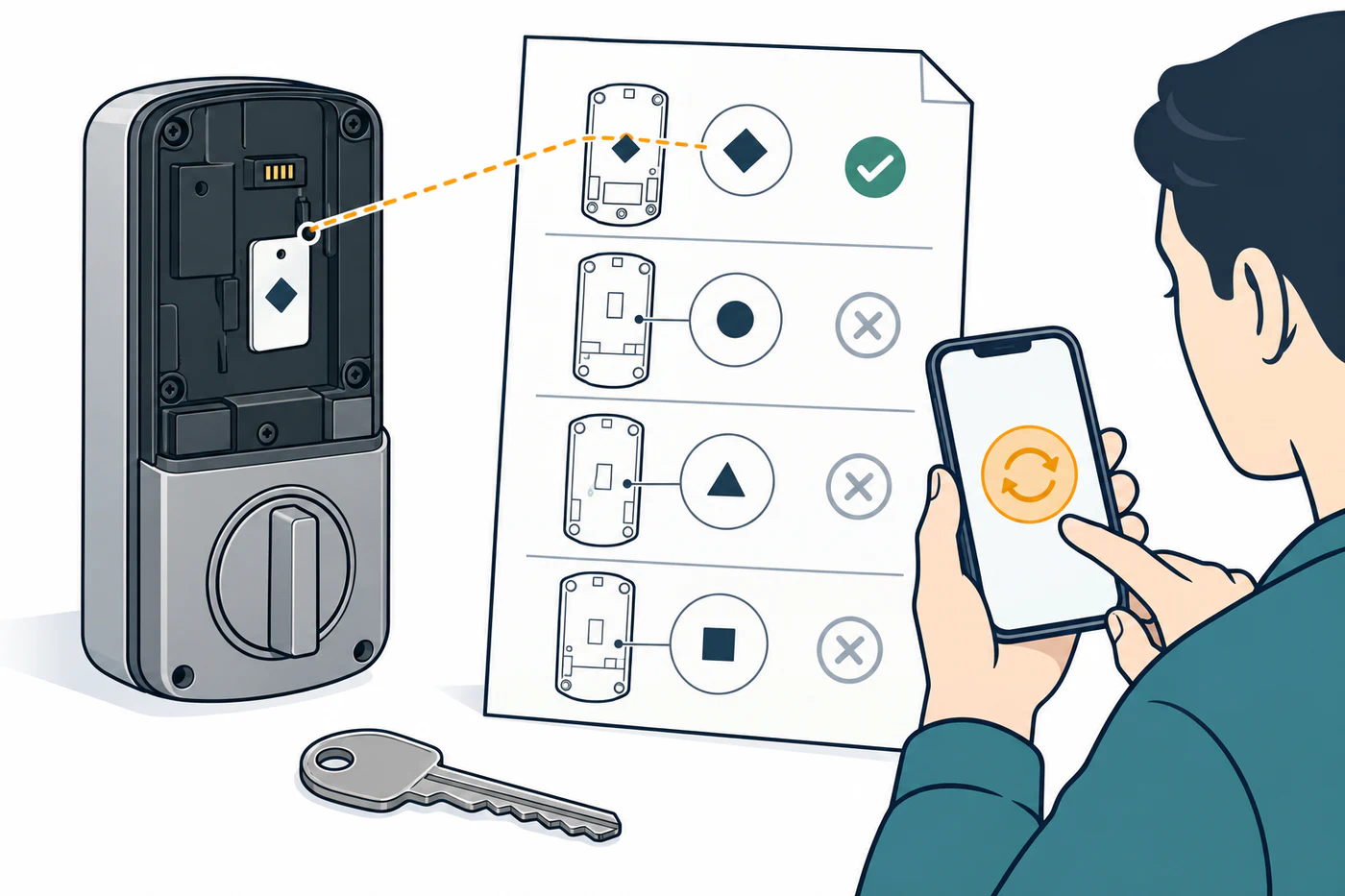
Check the manufacturer’s release notes and exact hardware revision before updating firmware. For example, Schlage’s Control 05.18.01 release note names Mobile Enabled BE467/FE410 locks with hardware version BM and lists related ENGAGE, gateway, module, and app versions. Those dependencies do not establish update eligibility for another hardware revision or provide a general failed-update recovery. Keep a mechanical access path and follow the vendor’s update sequence; a missing update option or unavailable integration does not justify a factory reset.
Avoid risky network shortcuts
Do not disable firewalling, expose a lock to the public internet, share a setup code, or unpair/reset the lock simply because discovery failed. Preserve the Matter setup code as the manufacturer instructs, and use the platform’s diagnostics or manufacturer support. If the lock is physically jammed or its state is uncertain, troubleshoot that separately from the app.
For symptoms that begin with weak power, start with battery and environmental checks. For a broader decision order, see fit problem, setup problem, or incompatibility.
Reference material
Sources for this guide
- MatterPrimary
- The Matter upgrade you've been waiting forPrimary
- Smart Lock U300 User ManualPrimary
- Set up, manage and control Matter-enabled devices with Google HomePrimary
- Intro to Home on iPhonePrimary
- If you can't add a smart home accessory to the Home appPrimary
- P30 Pro Max User ManualPrimary
- Schlage Control Mobile Enabled Smart Lock Firmware 05.18.01 Release NotesPrimary