Add a Matter-Enabled Level Lock to a Smart Home Ecosystem
Follow Level's setup path for supported Matter locks and check the timing and controller requirements before pairing one or more ecosystems.
Jump to a section
Level’s current Matter setup guide covers Level Lock Pro, Level Lock+ (Matter), Matter-enabled Level Lock, and Level Bolt (Matter). It explains how to add one of these locks to a first ecosystem and how to share it with an additional Matter ecosystem. Check the exact model and current instructions; this setup path does not apply automatically to every Level lock.
Prepare before inserting the battery
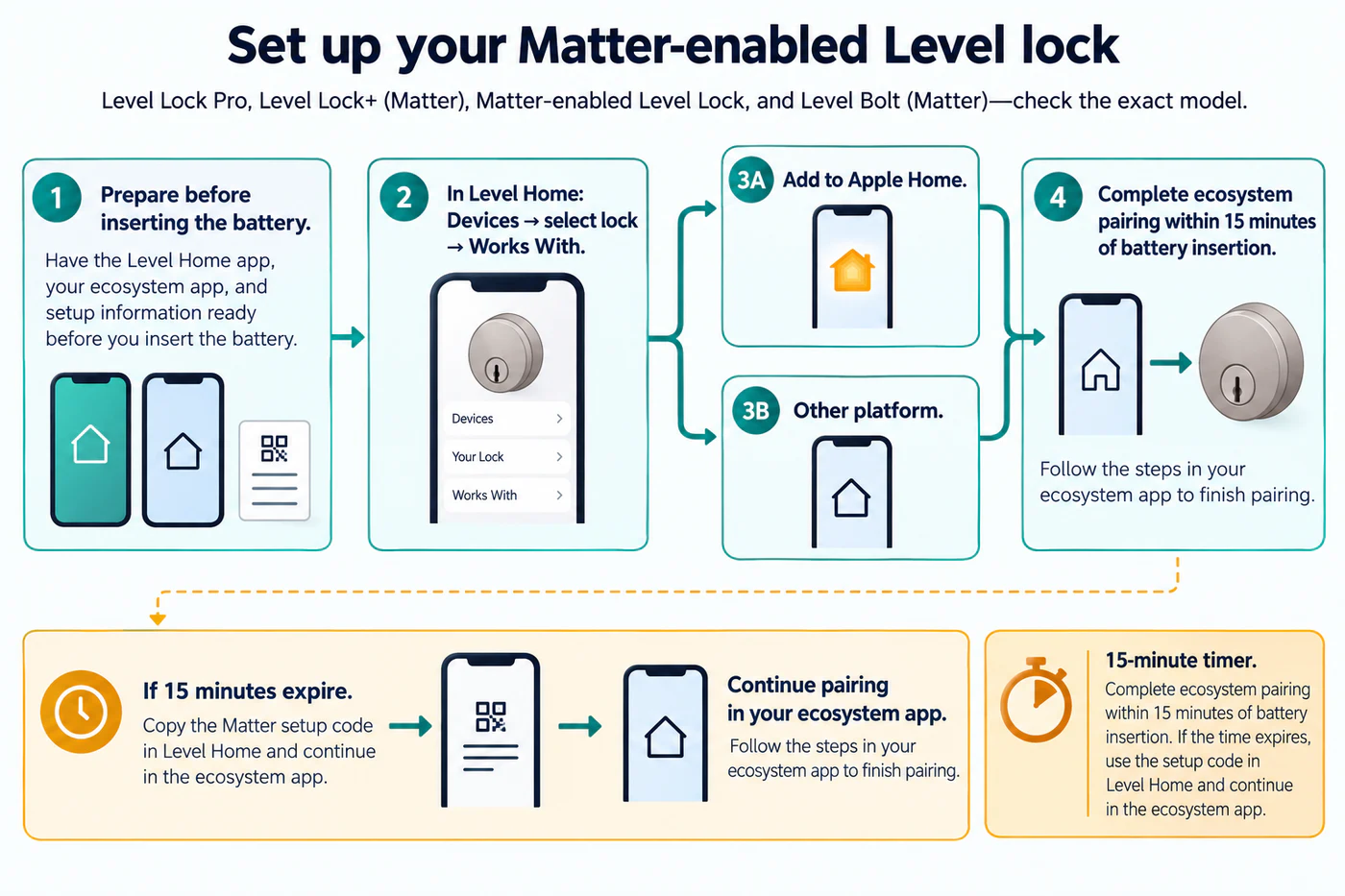
Have the Level Home app, the target ecosystem app, and the lock’s setup information ready before starting. Level says there is a 15-minute window from battery insertion to add the lock to an ecosystem. If that window expires, Level’s instructions say you can copy the Matter setup code in the Level Home app and continue through the ecosystem app.
For another ecosystem, Level specifies an additional Matter-over-Thread hub controller. Check the current Level list of compatible controllers and confirm that the exact hardware and ecosystem support the lock’s connection path. A generic Matter label on a hub does not establish that it can control this model.
Add the lock to its first ecosystem
- In the Level Home app, open the relevant home location and choose Devices.
- Select the lock and open Works With.
- For Apple Home, select Add to Apple Home and follow the Home app prompts.
- For another listed Matter ecosystem, select Other platform, copy the setup code, and follow that ecosystem app’s add-device instructions.
- Confirm that the lock appears in the chosen app before leaving setup.
For Apple Home, Level’s guide says the app’s code-handling prompt differs by iOS version: it may copy the code to the clipboard or prompt you to scan or copy it. Follow the current screen for the phone and app version you are using. Keep the setup code private because it is used to authorize pairing.
Add an additional Matter ecosystem
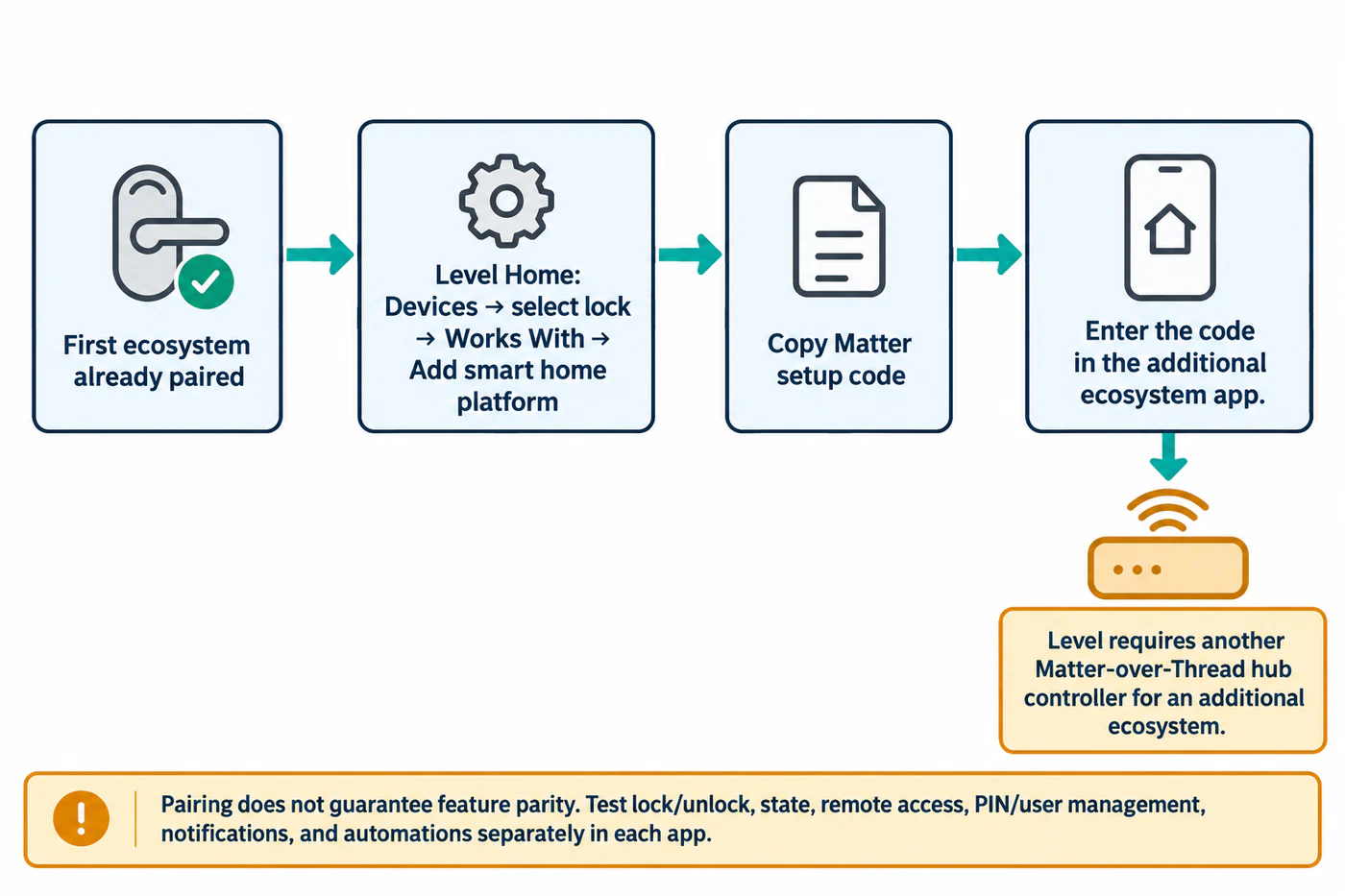
If another household member needs to control the lock through a second ecosystem app, Level’s guide says to open the lock’s Works With settings in Level Home, choose Add smart home platform, copy the setup code, and use it in the additional ecosystem app. Level states that another Matter-over-Thread hub controller is required for this path.
Pairing the lock with another ecosystem does not prove that both apps expose the same functions. After setup, test lock and unlock, state reporting, remote access, PIN or user management, notifications, and automations separately. If a capability is missing from one app, keep it unconfirmed for that model and integration rather than transferring a result from another Level lock or platform.
Keep electronic setup separate from door fit
This guide covers the cited Matter-enabled Level products’ ecosystem pairing instructions. It does not establish that a lock physically fits a particular door or that every Level model supports Matter. Before installation, follow the exact product’s preparation requirements. After pairing, keep the normal entry method available and record the model, controller, firmware, actions tested, and date in the ecosystem feature matrix. For controller and Thread roles, see hubs, border routers, bridges, firmware, and commissioning.
Reference material